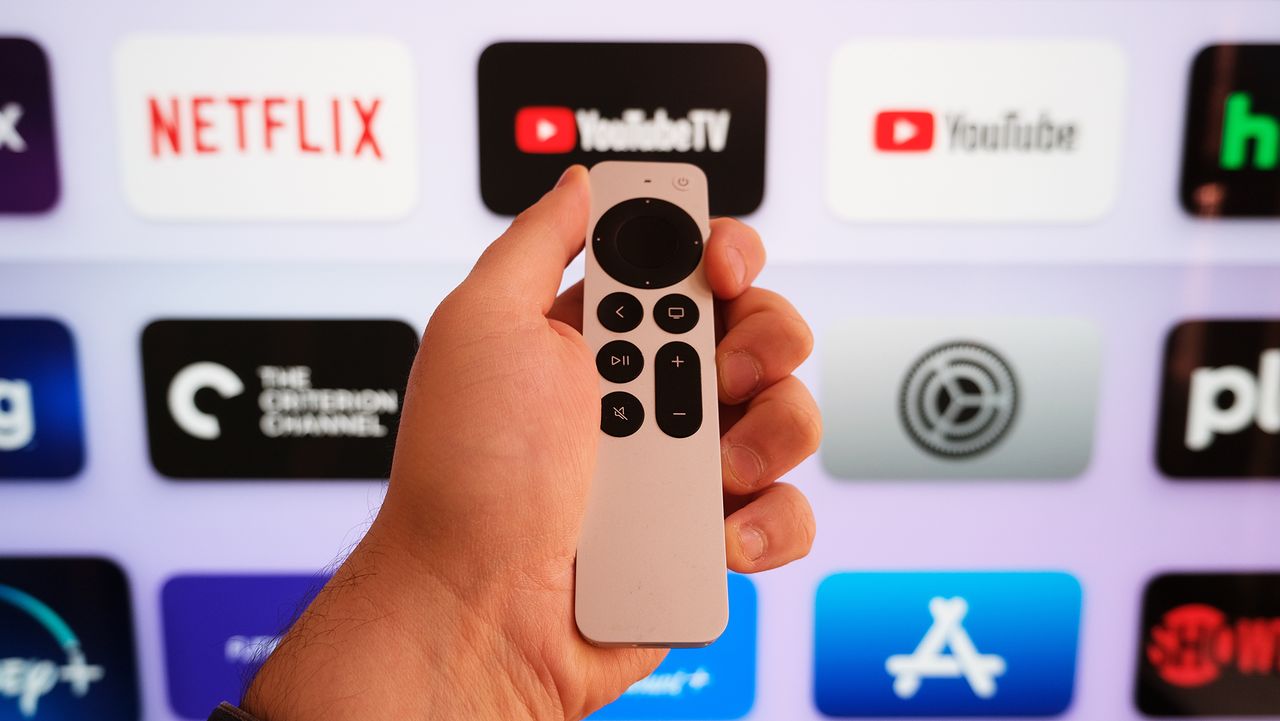
On the surface, the Apple TV remote looks almost too simple. It has the obvious buttons you expect: play, pause, back, and volume control. But behind that minimalist design, Apple buried several powerful shortcuts inside tvOS that most users never discover.
Some of these hidden features solve genuinely frustrating problems like fixing a mid-episode freeze without having to pull the plug on your entire device. Others unlock accessibility tools or hand you advanced settings.
If you want to stop wrestling with menus and start streaming smarter, here are the five hidden Apple TV remote features worth learning.
1. Force-close apps without restarting
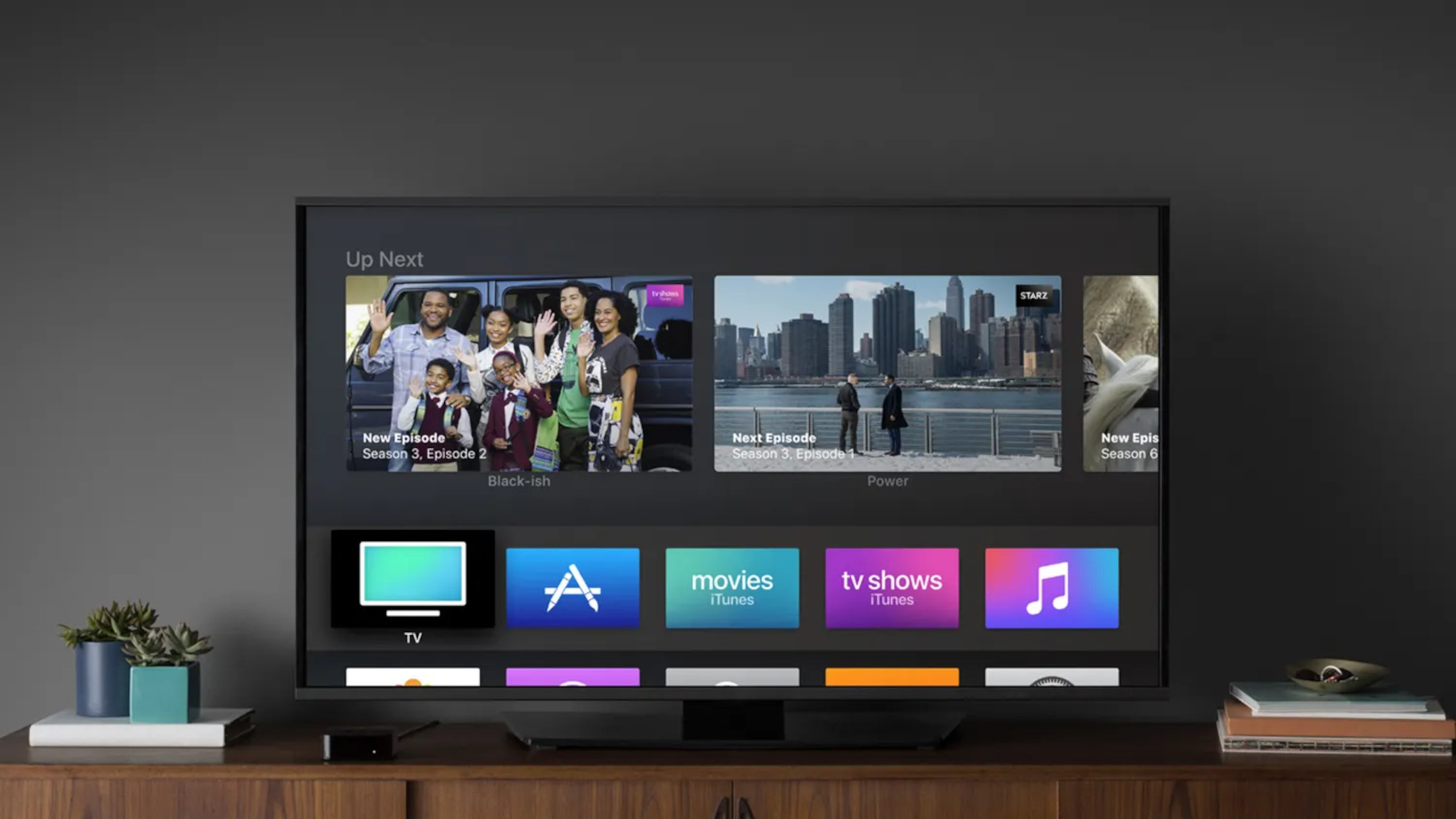
When an Apple TV app misbehaves, most people unplug the entire device and wait for a restart. There's a faster way.
If you double-press the Home button your remote pulls up a carousel of currently running apps. Each open app appears as a card you can navigate through. Once you've selected the problematic app, swipe upward to force-close it. The app shuts down immediately without affecting anything else running on your Apple TV.
Closing them periodically keeps your streaming device responsive and prevents the creeping slowdown that happens over weeks of continuous use. It's especially useful if you're switching between multiple services and notice performance dropping.
2. Scrub through video with precision

The clickpad on your remote isn't just for navigation, it's a timeline controller. Press the play/pause button, then slide your finger left or right on the clickpad to rewind or fast-forward through a show or movie.
You can also draw circles on the clickpad in either direction to scrub, which some users might find more intuitive than sliding.
For older Siri Remotes without the clickpad, use the touch surface instead. The advantage of scrubbing over using verbal commands is precision — you can land exactly where you want in a scene without overshooting by 15 seconds.
It's particularly useful when you're trying to find a specific moment or skip past credits without jumping too far ahead.
3. Switch audio outputs instantly
If you have external speakers connected to your Apple TV — whether that's a pair of HomePod minis or a soundbar — you can change audio routing without diving into settings menus.
To open the audio dashboard without interrupting playback, simply long-press the TV/Control Center button (the rectangular button with the TV icon) on your Remote. The Control Center panel will slide into view, allowing you to click the Audio Controls icon and quickly select your desired speakers.
This is invaluable when you want to switch from TV speakers to a better sound system, temporarily route audio to your headphones for quiet listening, or even select multiple AirPlay 2 speakers at once to send perfectly synced audio to different rooms.
4. Enable accessibility features with one gesture
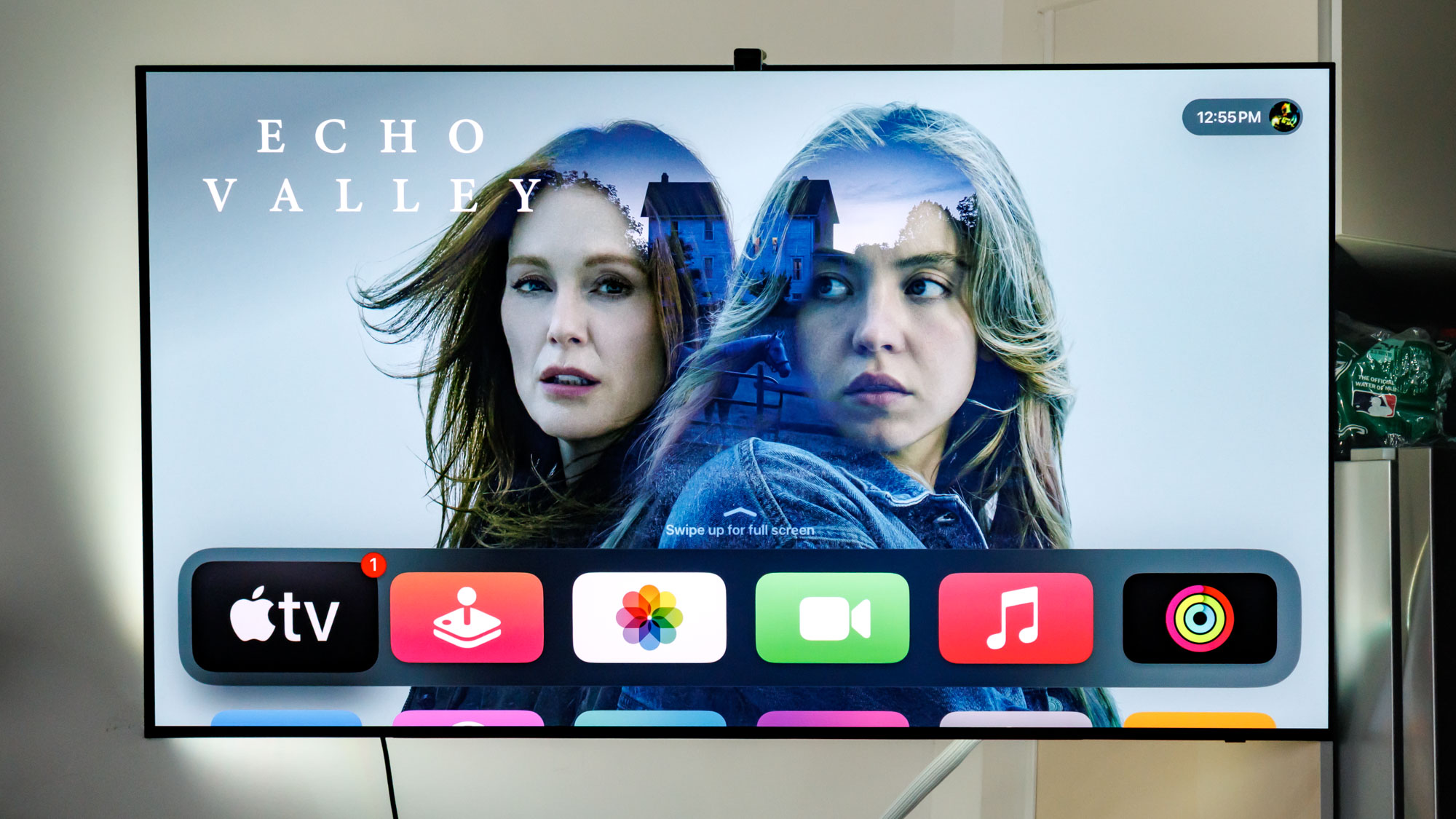
VoiceOver is Apple's audio description system that reads menus, text, and interface elements aloud as you navigate. It's designed for users with vision impairments but benefits anyone who wants spoken feedback from their device.
You can set up a quick toggle in Accessibility settings — triple-press the Menu or Back button to activate it instantly.
Once enabled, standard navigation is done entirely with a single finger: simply drag your finger across the clickpad to explore and hear what is currently beneath it, or flick left or right with one finger to move sequentially to the next item.
The more advanced two-finger gestures are saved for controlling the speech itself —such as a single two-finger tap to instantly pause or resume the voice, or a two-finger flick up or down to have VoiceOver read the entire screen aloud.
5. Unlock advanced settings and demo mode

Apple hides specialized menus in tvOS to prevent accidental system changes. To access the hidden Advanced Settings developer menu, go to Settings, System, Software Update, highlight the update field, and press Play/Pause four times. This menu safely disappears the next time you restart your Apple TV.